Design for Accessibility That Ships Real Products

Outrank AI

95.9% of the top one million homepages had at least one detectable WCAG 2 failure in WebAIM's February 2026 analysis, with 56,114,377 accessibility errors across the dataset and an average of 56.1 errors per page (WebAIM Million 2026). That isn't a niche compliance problem. It's a product quality problem affecting the first touchpoint many people have with a company.
For founders and product leaders, design for accessibility means removing friction from onboarding, dashboards, checkout flows, account settings, and marketing pages. It helps screen reader users, but it also helps keyboard users, people with low vision, users on small screens, and anyone trying to read an interface in bright light. Clear labels, visible focus, readable contrast, and predictable interactions make products easier to use for everyone.
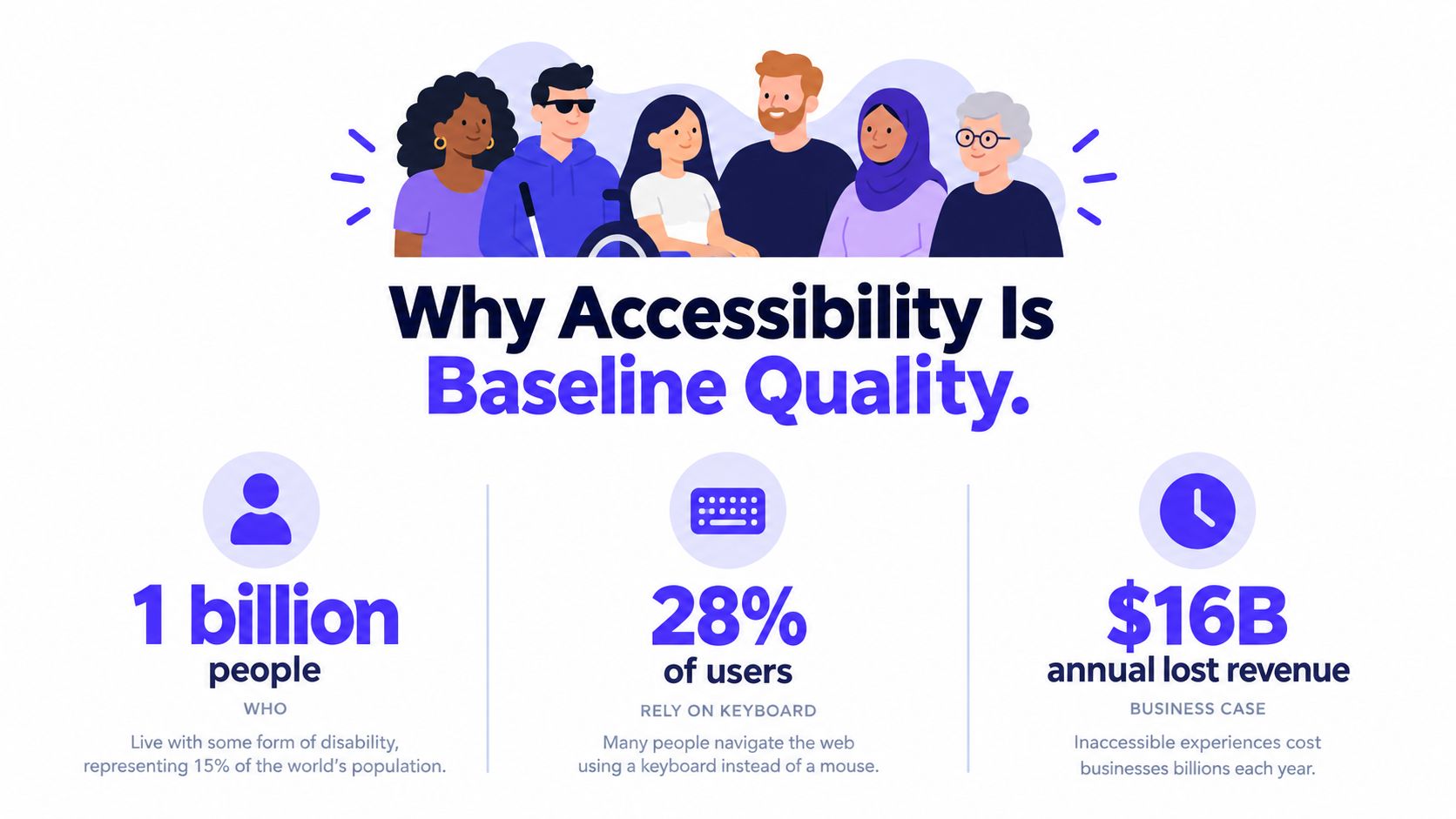
Table of Contents
Why Design for Accessibility Is Baseline Product Quality
Accessibility failures are production failures. They block actions, weaken trust, and create extra work for support teams. For a funded startup, that can mean lower signup completion, slower activation, and lost revenue while the team is still trying to learn which parts of the product retain customers.
A polished AI SaaS product can still lose users when its command palette requires a mouse. A fintech dashboard can look trustworthy while low-contrast labels disappear on a bright screen. A Web3 onboarding flow can explain wallet actions clearly to sighted mouse users, then become confusing when focus moves unpredictably between controls.
The business impact appears in ordinary product behavior. Someone who cannot identify the next action may abandon signup. Someone who cannot understand a validation error may open a support ticket. A finance user who cannot move through a table efficiently may export the data and leave the product.
Accessibility reaches beyond permanent disabilities
People also use interfaces under temporary and situational constraints. Someone with a hand injury may rely on a keyboard. Someone holding a phone in direct sunlight may need stronger contrast. Someone working in a noisy environment may miss information delivered through audio alone. A tired, distracted, or unfamiliar user benefits from clear structure and explicit instructions.
Designing for these conditions improves the main product rather than creating a separate accessible version. A semantic button is easier for assistive technology to use and usually easier for engineers to maintain. A descriptive link helps screen reader users and lets a hurried buyer scan a page faster.
Product rule: If a task affects activation, retention, or revenue, it should work without relying on one input method, one sense, or one ideal environment.
Treat it as part of the shipped product
Accessibility decisions hold up when product design, brand design, and frontend implementation make them together. Contrast belongs in the visual system. Focus states belong in component specifications. Keyboard behavior belongs in interaction design. Labels, error messages, and alternative text belong in content patterns and code.
This approach also reduces the cost of fixing issues late. A component with defined states can carry the right focus treatment into every screen. A documented interaction gives engineers a clear implementation target instead of leaving accessibility to a final audit.
That is the model 925 Studios brings to startup work. As one creative partner covering product design, brand design, and frontend development, the studio can carry accessibility decisions from early flows through components, handoff, and shipped screens. For teams with limited time, that makes accessibility part of product quality and conversion work, rather than a separate inspection after launch.
WCAG Essentials Every Product Team Should Know
WCAG 2.2 becomes practical when the team turns its four principles into product questions:
Perceivable: Can users receive information through more than one sensory channel?
Operable: Can users complete actions with a keyboard and other input methods?
Understandable: Are labels, instructions, states, and errors clear?
Reliable: Does the interface expose reliable meaning to browsers and assistive technologies?
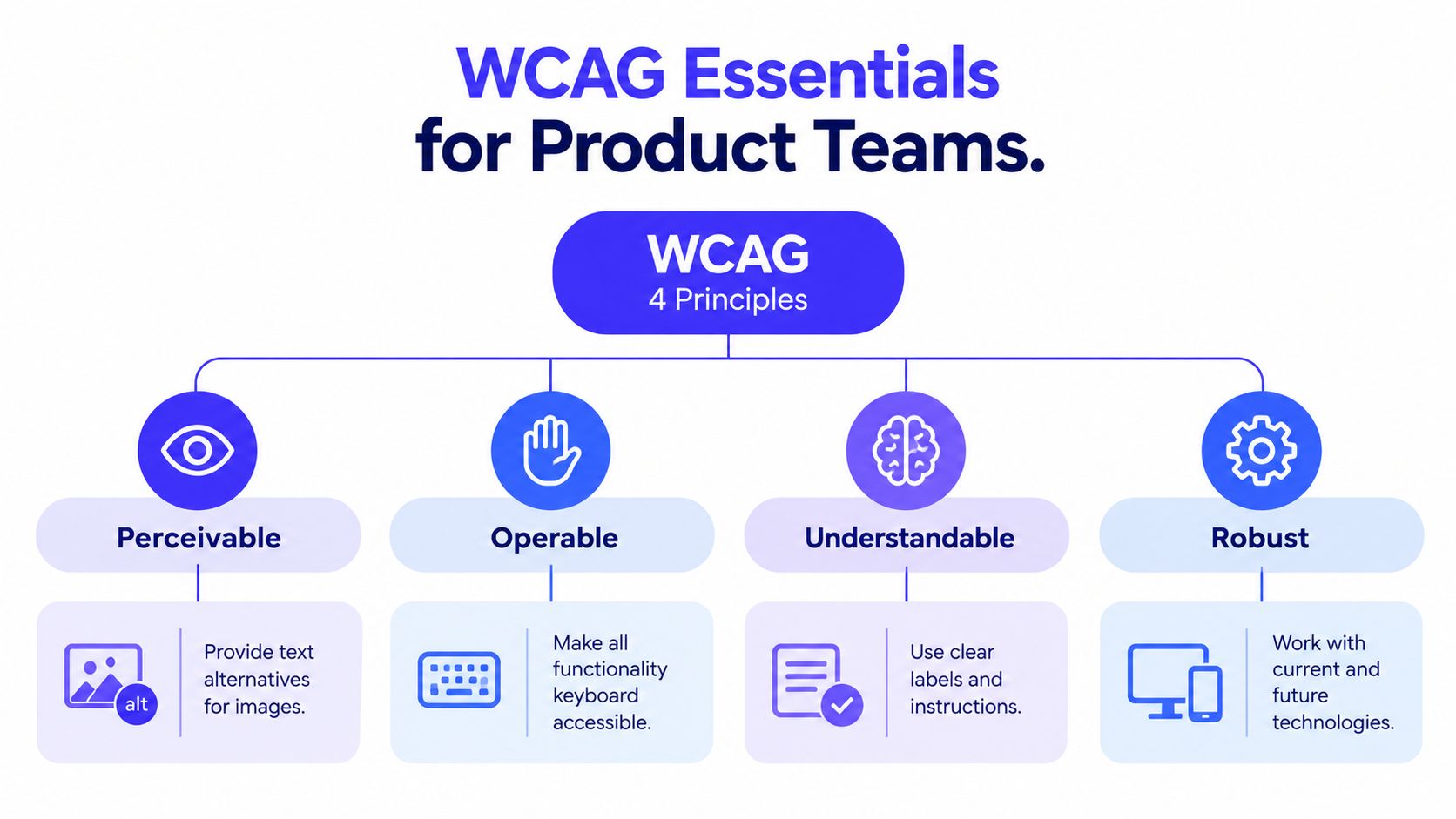
Designers, writers, engineers, and marketers do not need to memorize every WCAG criterion. They do need a shared interpretation of these principles and a clear connection to the interface.
Start with the failures that repeat
A 2026 survey of 1,564 websites found that WCAG 4.1.2 Name, Role, Value was the most common failure, affecting 67.1% of surveyed sites. Contrast failures affected 51.3%, while link-purpose failures affected 50.1% (WCAG failure rates research).
Every interactive control needs a programmatic name, the correct role, and a state that assistive technology can interpret. A custom icon button needs a useful accessible label. An expandable navigation item needs to expose whether it is open or closed. A loading control needs to communicate status without relying only on animation.
Link purpose matters when several links appear on one page. “Read more” gives little context, while “Read the pricing guide” identifies the destination even when links are reviewed outside their visual surroundings.
Teams looking for a plain-language explanation can use this WCAG and assistive technology overview to connect the guidelines with real user agents and assistive tools.
Make contrast and focus concrete
WCAG 2.2 requires normal text and images of text to reach a contrast ratio of at least 4.5:1. Large text and images of large text need at least 3:1 (W3C guidance on focus appearance and contrast). Decorative, inactive, or invisible text is exempt, but those exceptions should not become an excuse for weak hierarchy.
Focus needs an explicit design treatment. Under the WCAG 2.2 Focus Appearance criterion, a visible focus indicator must cover at least the area of a 2 CSS pixel thick perimeter around the unfocused control or sub-control. The focused state must also reach at least a 3:1 contrast ratio against the unfocused state (W3C WCAG focus issue).
Keep the browser outline unless a replacement is defined and tested. The replacement must work across buttons, links, inputs, menus, dialogs, and table controls.
How to Build Accessibility Into Your Design Process
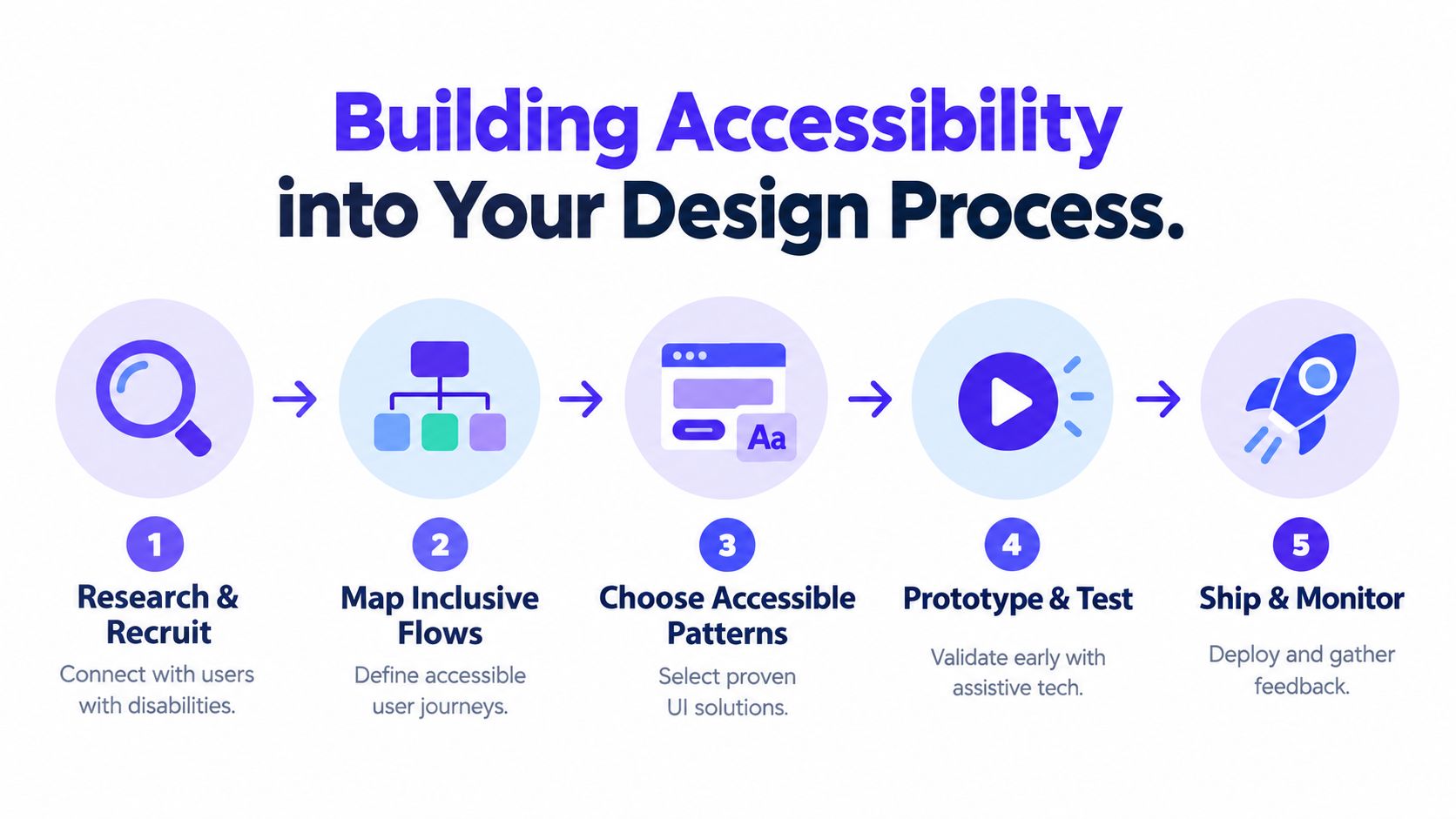
Accessibility decisions belong in discovery, not only in QA. If the team waits until the interface looks finished, changing the structure can force redesigns across flows, content, and frontend behavior. For funded startups, that delay affects product quality and conversion. A partner covering product, brand, and frontend can carry the same accessibility decisions from research into components and handoff, rather than treating accessibility as a post-launch audit.
Research the people and tasks
Start by finding where users may encounter barriers. Review support conversations, session recordings, product feedback, and failed onboarding steps. Recruit people with different access needs when the product has meaningful reach or complexity. A short moderated session can expose problems a design critique misses, such as a modal that traps focus, a chart without a text equivalent, or a form that announces errors in the wrong order.
Research should use real tasks, not a disability checklist. For an AI product, ask participants to create a workflow, review generated output, and edit a prompt. For fintech, ask them to connect an account, resolve a failed payment, and export a report. These tasks reveal where accessibility affects completion and confidence.
Map the complete flow
Document the path from entry point to successful outcome. Include errors, loading states, empty states, and recovery. Mark where users need to know:
What changed: Announce updates such as a completed upload or refreshed result.
What's required: Identify required fields in text, not only through color or an asterisk.
What went wrong: Put useful error text near the field and provide a summary when several fields fail.
What happens next: Give buttons and links labels that describe their actions.
For navigation, define a logical heading structure and predictable tab order. For data tables, identify headers and preserve row and column relationships. If dense data cannot be understood through the visual layout alone, provide a useful alternative.
Select patterns before styling screens
Use native HTML controls when they meet the need. A real button usually gives keyboard and assistive technology users better behavior than a clickable div, while reducing code to maintain. If a custom pattern is required, define its keyboard behavior, focus treatment, name, role, value, expanded state, and disabled state before finalizing the visual design.
Color must not carry meaning alone. Pair error color with an icon and text. Pair chart colors with direct labels, patterns, or line styles. Review designs in grayscale, at different zoom levels, and on a small screen.
Typography, motion, and spacing affect task completion too. Keep content scannable, avoid dense instruction blocks, and offer reduced motion when animation is not necessary. A dashboard can retain its brand without making users follow moving elements or interpret decorative visuals.
Prototype with real interaction
A static Figma screen can show a focus ring, but it cannot prove that focus moves correctly. Prototype the interaction early, then test the actual build with keyboard navigation and a screen reader. Test opening and closing dialogs, skipping navigation, moving through tables, submitting invalid forms, and recovering from errors.
Use the documented eight design process steps as a delivery structure, then attach accessibility acceptance criteria to each feature. Product, brand, and frontend decisions should meet in the same handoff so accessible behavior ships with the component, not as a separate fix after launch.
Making Accessibility Stick Inside Your Design System
A design system turns accessibility from a memory exercise into a reusable product capability. If a team fixes one button on one screen, the next feature can reintroduce the same problem. If the button component carries the correct states, labels, focus behavior, and usage guidance, every new screen starts from a stronger baseline.

Put accessibility into tokens
Color tokens should distinguish text, surfaces, borders, interactive states, alerts, and focus indicators. Don't name tokens only by hue, such as “blue 500,” when their real purpose is “interactive text” or “focus ring.” Purpose-based names make it easier to change a value without losing track of where it's used.
Create explicit tokens for hover, focus, pressed, selected, disabled, loading, success, warning, and error states. Each state needs a visible treatment that doesn't depend on color alone. A selected navigation item might use color, weight, and an icon or indicator. An error field might use color, an icon, and an associated message.
Define component acceptance criteria
A component specification should answer implementation questions, not just show a polished screenshot.
For a button, document the accessible name, minimum target behavior, focus appearance, disabled behavior, loading announcement, and keyboard activation. For an input, document the label relationship, hint text, required state, autocomplete behavior, error association, and focus placement after submission. For a modal, specify focus placement on open, focus containment while open, the close action, and focus return after dismissal.
Content patterns matter just as much. Give writers rules for meaningful link labels, concise alternative text, table summaries, and error messages that explain how to recover. A decorative image should not create unnecessary screen reader output. An informative chart needs a textual explanation that communicates the decision-relevant point.
Keep the system usable for brand teams
Accessibility doesn't require stripping personality from the interface. Brand expression can live in illustration, shape, typography, motion, tone, and composition, while core controls preserve readability and predictable operation. The trade-off is deliberate. A slightly adjusted brand color is better than a beautiful button that disappears for low-vision users.
Governance keeps those decisions from drifting. Assign an owner for component updates, record why accessibility changes were made, and include release notes when behavior changes. Teams that need a practical reference for maintaining component guidance can use this design system documentation guide.
Testing and Handoff That Catches What Scanners Miss
Automated scanning is useful, but it can't decide whether a label makes sense, whether focus order matches the task, or whether a screen reader user understands a complex data visualization. The practical workflow combines automation with human review.
Only about 13% of WCAG 2.2 AA criteria can be reliably flagged by scanners, while scans miss roughly 42% of criteria entirely (automated WCAG scan limitations). Use tools to find repeatable defects quickly, then verify the experience manually.
Compare the test methods
Test Method | What It Catches Best | Limitations |
|---|---|---|
Automated scan | Missing labels, some contrast failures, empty links, missing required attributes, and repeated component defects | It can't judge meaning, task clarity, focus order, or whether an interaction is genuinely usable |
Keyboard testing | Missing focus, keyboard traps, illogical tab order, inaccessible menus, dialogs, and tables | It doesn't reveal how content is announced or whether nonvisual context is complete |
Screen reader testing | Missing names, incorrect roles, state announcements, heading structure, form relationships, and dynamic updates | Results vary by browser, screen reader, and user technique, so one pass isn't enough |
Expert review | Complex workflows, cognitive load, content quality, custom widgets, and conformance questions | It takes judgment and can't replace testing with real users |
Run an automated scan on the key route, including authentication, onboarding, the main product workspace, billing, and account settings. Fix repeated component defects first. A single broken input pattern can affect many screens, while a one-off decorative issue may have less immediate impact.
Test the path, not just the page
Keyboard testing should follow the user's actual task. Start at the first interactive element and use Tab, Shift plus Tab, Enter, and arrow keys where appropriate. Check whether focus is always visible, whether it moves in a sensible order, and whether every action can be completed without a mouse.
Screen reader testing should cover the same task. Listen for headings, labels, instructions, errors, status updates, and table relationships. Don't assume that adding ARIA fixes an issue. Incorrect ARIA can create a confident-sounding but misleading interface, while semantic HTML often solves the problem more cleanly.
Handoff needs to carry behavior, not just pixels. Include focus order, keyboard shortcuts where they exist, accessible names, state changes, error associations, motion preferences, and empty or loading states. A developer should know what happens when a user opens a dialog, submits an invalid form, filters a table, or receives a new AI result.
For teams that want to improve their research and validation habits, this guide to user testing provides a useful foundation. Accessibility testing belongs inside that broader product feedback loop.
Measure Maintain and Improve Accessibility Over Time
Accessibility quality changes as the product changes. New components, third-party integrations, redesigned flows, and content updates can reintroduce defects after a clean review. Treat accessibility as a release condition and an ongoing product responsibility.
Track a focused set of signals:
Critical journeys: Review signup, login, onboarding, payment, core product tasks, and account recovery.
Component regressions: Run automated checks in CI and flag changes to shared controls.
Manual coverage: Repeat keyboard and screen reader checks for workflows with meaningful interaction changes.
User feedback: Make reports easy to submit and route them to someone who can prioritize and resolve them.
Backlog impact: Rank issues by the task they block, the number of surfaces affected, and whether a shared component can prevent recurrence.
Report progress in product language. “The billing flow now supports keyboard completion” is more useful to a founder than a vague compliance label. “The empty state explains what to do next and provides a labeled action” connects the work to activation and support burden without pretending every improvement has a guaranteed revenue lift.
A lightweight checklist can keep reviews consistent across releases. Include semantic structure, labels, contrast, visible focus, keyboard completion, screen reader announcements, error recovery, reduced motion, and content alternatives. The checklist shouldn't replace expert review or user feedback. It should prevent obvious omissions from reaching the final stage.
925 Studios gives AI SaaS, Web3, and fintech teams one creative partner across product design, brand design, and frontend development. That model keeps accessibility decisions attached to the components and interactions that ship, rather than passing a finished interface to someone else for remediation.
If your product needs a clearer, more accessible interface from brand direction through frontend delivery, visit 925 studios to discuss the next feature, redesign, or design system. Bring the workflow that matters most, and we'll help turn it into a usable product experience that's built to ship and maintain.
Let’s keep in touch.
Discover more about high-performance web design. Follow us on Twitter and Instagram.