Claude Code vs Cursor for Designers

Yusuf
Founder and lead designer at 925studios

You're in the middle of a real product decision, not a tool hobby. The designer has Figma open, the founder has a browser tab with the latest landing page, and someone on the team is bouncing between Cursor in one window and Claude Code in another trying to get the same screen shipped before lunch. That's the actual problem behind claude code vs cursor for designers, not which product wins a benchmark screenshot.
For founders and product leads, the useful question is simpler. Which tool keeps the designer moving without breaking visual intent, losing time to context switching, or turning one screen into three days of cleanup? The answer depends on whether you're shipping screens or systems.
Decision area | Claude Code | Cursor | Best fit |
|---|---|---|---|
Correctness across many files | Strong when the work spreads across the codebase, especially for multi-file changes source | Better for smaller, inline edits inside the editor source | Claude Code for system work |
Large context handling | Built for broad, multi-step work, with a 1 million-token context window on Max, Team, and Enterprise plans source | Strong for local editing, less suited to huge surfaces | Claude Code for design systems |
Inline editing speed | More terminal-led and less immediate for visual tweaks source | Faster for interactive editing inside the IDE source | Cursor for quick UI iteration |
Model flexibility | More locked to Anthropic's models source | Lets users switch models in the same session source | Cursor for teams that test models |
Design workflow fit | Better when the task crosses files, commands, and tests source | Better when the designer wants one editor-centric loop source | Cursor for hands-on UI work |
A useful example for teams on React Native is the way React Native code differences shape the handoff. If the designer is trying to preserve component structure while the engineer is asking for structured output, that difference matters more than a headline feature list.
Table of Contents
The Real Question Behind Choosing Between Claude Code and Cursor
A founder watches a designer open Cursor on one monitor and a terminal on the other. The screen is the same, the deadline is the same, and the frustration is the same. One tool feels safer for visual edits, the other feels stronger when the work spreads across files, tests, and cleanup.
That's why most comparisons miss the point. Designers aren't choosing a coding toy, they're choosing the path that gets them from Figma to production without losing the look, the structure, or their sanity. When the task is a multi-file UI refactor, a design-system update, or handoff cleanup, correctness across the whole surface matters more than a flashy inline suggestion.
Practical rule: if the designer keeps leaving the editor to check a mockup, a browser, and a terminal, the workflow is already broken.
The better lens is workflow fit. Claude Code leans toward autonomous, broader work across terminal, VS Code, JetBrains, and desktop environments source. Cursor leans toward interactive editing inside the IDE, where the designer sees changes as they happen source. That split is why the same team can love one tool for system changes and the other for daily polish.
The rest of this piece follows five choices that matter in design work, correctness, context scale, inline speed, model flexibility, and integration with the way product teams really ship. If you care about the line between shipping screens and shipping systems, those are the only questions worth asking.
What Each Tool Actually Is for a Designer
Claude Code and Cursor feel different at the desk because they ask for different habits. Cursor is a VS Code–based IDE with inline completion, chat, and diffs you approve inside the editor source. Claude Code is an agentic terminal tool that reads, edits, and runs commands across a project, then keeps going until the task is done source.
Cursor feels like design work inside the editor
A designer in Cursor usually stays in one app. They type a prompt beside the code, inspect the visual diff, accept what looks right, and tweak the rest. That feels close to extending Figma into code, because the loop stays tight and visible.
That matters when the request is local. Swap copy, adjust spacing, fix a button state, or tighten a card layout, and Cursor keeps the work in one place. The designer doesn't need to think about shell commands or orchestration unless the task grows.
For teams that want a broader product-design lens on this, Claude Code for Designers is a useful companion piece because it frames where each tool fits inside a design workflow instead of treating them like generic coding assistants.
Claude Code feels like handing off to a senior engineer
Claude Code is different. The designer writes a command or prompt in the terminal, the tool scans the codebase, makes changes across files, runs commands, and keeps iterating. That makes it feel less like a text editor and more like a capable teammate who can move through the repo without constant supervision.
That strength shows up when the work crosses boundaries. A landing page change that touches layout, shared components, and tests is a good fit. So is a cleanup pass after Figma handoff when the team needs the implementation to match the intent, not just the first visible screen.
A simple way to think about it, Cursor is better when the designer wants to see and approve each move. Claude Code is better when the designer wants to describe the outcome and let the tool work through the file tree.
Five Criteria Designers Should Compare Them On
The decision is not “which tool is smarter.” It's which one makes the designer's day less fragmented. In practice, that comes down to five criteria, and each one changes how a team ships UI, brand, and product work.
Claude's role in UI design is worth reading alongside this, because the strongest case for Claude Code is not abstract intelligence, it's how it handles structured UI work across a codebase. The same logic applies to design teams with real handoff pressure.
Criterion | Claude Code | Cursor | Best for |
|---|---|---|---|
Correctness across many files | Better on broader, multi-step tasks, with 78% first-pass correctness in one 100-task test, versus Cursor's 73% source | Better for local, visual edits inside the editor source | Claude Code for design systems and refactors |
Hard task reliability | Passed 68% of harder tasks on the first attempt, versus Cursor's 54% source | Strong when the change stays narrow and visual source | Claude Code for complex handoff cleanup |
Context scale | Reported as roughly 5.5x fewer tokens on identical tasks, with a 1 million-token context window on Max, Team, and Enterprise plans source | Faster for simple inline edits and tab-completion flow source | Claude Code for large interfaces |
Model flexibility | More terminal-native and comparatively tied to Anthropic's models source | Can switch among multiple models in one session source | Cursor for teams comparing outputs |
Workflow shape | Best for autonomous, multi-step work across files and commands source | Best for interactive editing inside the IDE source | Cursor for daily UI iteration |
What these numbers mean for designers is simple. Claude Code is the safer pick when the work has to stay correct across a lot of files, because a design-system update isn't really about one screen, it's about every screen that depends on it. Cursor is the better feel when the designer is shaping one component, one state, or one copy block and wants immediate visual feedback.
The part many teams miss is context scale. Large SaaS dashboards, marketing sites, and component libraries are not one-off edits, they're surfaces with lots of dependencies. That's where Claude Code's broader context becomes more than a technical detail, it becomes a design fidelity issue.
How Each Tool Handles Real Designer Tasks
Turning a Figma prototype into working code
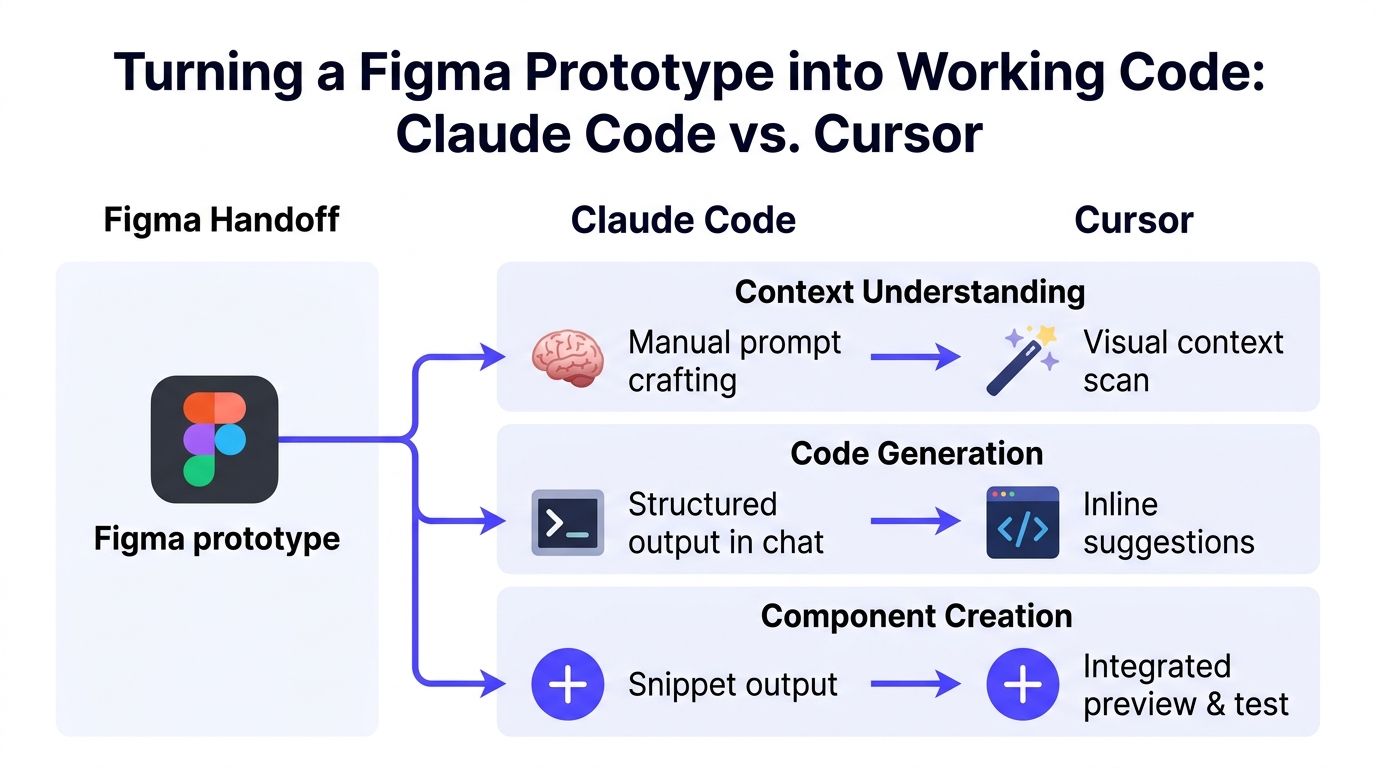
A designer starts with the layout in Figma, copies the intent into the tool, and then watches how the first output behaves. In Cursor, that often feels like fast back-and-forth tuning inside the editor. The designer can keep the browser, code, and preview mentally close together, which helps when the goal is a clean, visible screen.
Claude Code takes a different path. The designer needs a clearer prompt up front, but once the task is set, the tool can move through the implementation more broadly. That's useful when the prototype maps to multiple files, shared styles, and supporting states instead of one isolated page.
For simple prototype translation, Cursor is usually the calmer place to start. For anything with shared components or multi-step cleanup, Claude Code is the stronger second pass.
Generating a new component for a design system
Component work is where Claude Code starts to pull ahead. A button, card, or pricing table rarely lives alone, and the moment a designer needs the new piece to align with existing patterns, file-wide correctness matters more than line-by-line convenience. Claude Code is built for that broader sweep source.
Cursor still works well when the designer wants to iterate visually on a single component. The IDE-first loop lets them inspect the output, accept changes, and adjust the piece in context. That's good for polishing, but it can get cramped when the component touches many related files.
The best prompt is still a good artifact. A rough wireframe, a reference link, and the existing snippet keep either tool closer to the real design intent.
A practical prompt pattern for Claude Code looks like this, “Update the shared card component to match this Figma structure, keep existing spacing tokens, and run the relevant tests before you stop.” In Cursor, the same request works better when it stays closer to the file being edited, “Adjust this card to match the reference, keep the current class structure, and show the diff before applying.”
Fixing accessibility issues across an existing screen
Accessibility cleanup is where design teams often waste time if the tool can't hold context. Contrast issues, focus states, label problems, and structural fixes usually stretch across markup, shared styles, and behavior. Claude Code handles that kind of cross-cutting work more naturally, especially when it needs to inspect files, run checks, and keep iterating.
Cursor helps when the issue is visible and local. If the designer spots a button state or a label tweak in a single file, the inline experience is faster. But once the work touches more than the current screen, the editor-first loop starts asking for more manual oversight.
The Hidden Cost Nobody Talks About, Context Switching
The hardest part of designer-led implementation is not generating code, it's holding the visual intent while bouncing between tools. Every hop from Figma to the browser to the editor to the terminal creates a chance to lose the shape of the interface. That loss rarely shows up as a big failure, it shows up as tiny drift, a spacing miss here, a copy mismatch there, a component that almost feels right.
Claude Code and Cursor both help, but they help differently. Claude Code leans on the terminal, so the designer often gathers references first, then prompts, then checks results somewhere else. Cursor compresses more of the loop into the editor, which makes it easier to stay in one mental mode longer.
Reference gathering changes the quality of the prompt
One practitioner's advice is blunt and useful, check whether the idea already exists, pull reference links or snippets, and keep rough wireframes or hand sketches nearby. That matters because designers don't just need code, they need the code to reflect a visual decision.
If the prompt starts from a clean reference, both tools do better. If the prompt starts from a vague vibe, both tools drift. The difference is that Cursor usually surfaces that drift faster because you can see the output immediately, while Claude Code often rewards a clearer brief with broader, cleaner execution.
The less you hop, the better the design survives
The best workflow is the one that keeps the designer in one mode for as long as possible. Cursor reduces friction when the task is visual and local. Claude Code reduces friction when the task is larger than the current file and the designer can trust the tool to work through the repo.
Rule of thumb: if the work needs a browser open beside the editor the whole time, Cursor usually fits better. If the work needs the terminal doing real work across files, Claude Code earns its keep.
The hidden cost is not emotional, it's operational. Every extra switch slows review, makes handoff sloppier, and increases the chance that the final screen matches the prompt instead of the brand.
Pricing and Team Fit for Funded Startups
Both tools start around $20 per user per month for individuals source. That sounds simple until the team starts using them hard, because the higher-use tiers rise to roughly $100 to $200 per user per month source. For a founder, the headline price is not the issue, the issue is whether costs stay predictable when a designer iterates all day on the same product surface.
Claude Code's usage model leans toward rolling limits and heavier autonomous sessions. Cursor uses credits, and expensive models burn through them faster source. If your team is doing visual iteration with lots of small changes, that pricing shape can matter more than the sticker number.
Who feels the difference most
A solo designer shipping a marketing site on a weekend usually wants the shortest path to a visible result. Cursor fits that use case well because it stays close to the editor and rewards quick, interactive changes. A four-person product team refactoring a design system across several surfaces has a different problem, because the work is less about one screen and more about coordinated consistency.
That's where Claude Code's broader context and cross-file handling matter. The more your product looks like a system, the more the tool has to reason like one. Founders in AI SaaS, Web3, and fintech feel this quickly because dashboards, onboarding flows, and trust-heavy UI rarely live in isolated files.
925 Studios sits in that same gap when teams want one partner covering product design, brand, and frontend build without hiring three separate people. It's a relevant option for startups that need shipped interfaces and brand work tied together, not just isolated design output.
Budget for workflow fit, not just usage
If your designers are mostly doing visual polish, Cursor is easier to justify. If they're helping ship architecture-level UI changes, Claude Code becomes the more rational spend because it's built for broader, multi-step work source. The wrong mistake is buying the tool that sounds smarter, then watching the team fight the workflow every day.
For funded startups, the right budget question is whether the tool helps the designer finish the screen without dragging engineering into avoidable cleanup.
Which Tool to Pick for Your Team
Choose Claude Code if your team ships design systems, multi-page marketing sites, or any product work that crosses a lot of files. It's the stronger pick when correctness across the codebase matters more than the feeling of live inline editing. It also makes more sense when the designer is comfortable working from the terminal and wants deeper control over multi-step changes.
Choose Cursor if your team spends most of its time iterating visually inside one codebase. It's the better daily driver for UI copy changes, component polish, and fast prototype work where seeing the change immediately keeps the designer moving. If the person doing the work thinks in layouts and previews more than commands and file trees, Cursor fits the muscle memory.

The hybrid setup that actually makes sense
A lot of studios end up using both, but not as a vague compromise. Cursor becomes the everyday tool for interactive design work, and Claude Code gets used for the heavy refactor, accessibility sweep, or design-system cleanup at the end of the week. That split works because it maps to the work, not because both tools deserve equal screen time.
If you're trying to decide where to start, I'd still tell most UI designers to start with Cursor. It lowers the barrier, keeps the workflow visual, and makes handoff easier for people who don't want to live in the terminal. Claude Code should be the second tool you add when the work starts looking like system maintenance instead of screen editing.
A Short Migration Playbook If You Want to Switch
Start by auditing where your team already uses AI. Look at the tasks, quick UI fixes, design-system edits, accessibility cleanup, copy updates, and refactors. If the tool is only helping with one narrow kind of work, that tells you something.
Run a one-week pilot on one real screen, not a pretend toy task. Use the same design, the same handoff notes, and the same review path you'd use on a shipping product. Judge the result by what got shipped and how much cleanup it created, not by how smart the tool sounded.
Set up access and billing before the pilot starts. If you're testing Claude Code, keep the workflow around a concrete screen or component so the team can see where it helps with broader changes. If you're testing Cursor, give the designer a visual task that rewards inline iteration instead of abstract prompt handling.
For teams moving toward Figma-connected workflows, the Figma MCP playbook for Claude Code is worth reading because it shows how to connect design intent to code without turning the process into guesswork.
The mistake to avoid is blaming the tool for a workflow problem. If the references are weak, the file structure is messy, or the handoff is vague, switching tools won't fix that. The goal is still the same, ship polished interfaces and brand work that feels deliberate.
If you want a product design partner that can help your team ship the screen, the brand, and the frontend without adding another hire, talk to 925 studios. We work with AI SaaS, Web3, and fintech teams that need clear UI, strong brand, and a build-ready handoff. If you're deciding between Cursor and Claude Code right now, we can help you turn that choice into a cleaner shipping workflow.


Let’s keep in touch.
Discover more about high-performance web design. Follow us on Twitter and Instagram.